COMMUNITY
Using the community
Your account, the forum, chat, posting, following, messages and reporting.
Your account
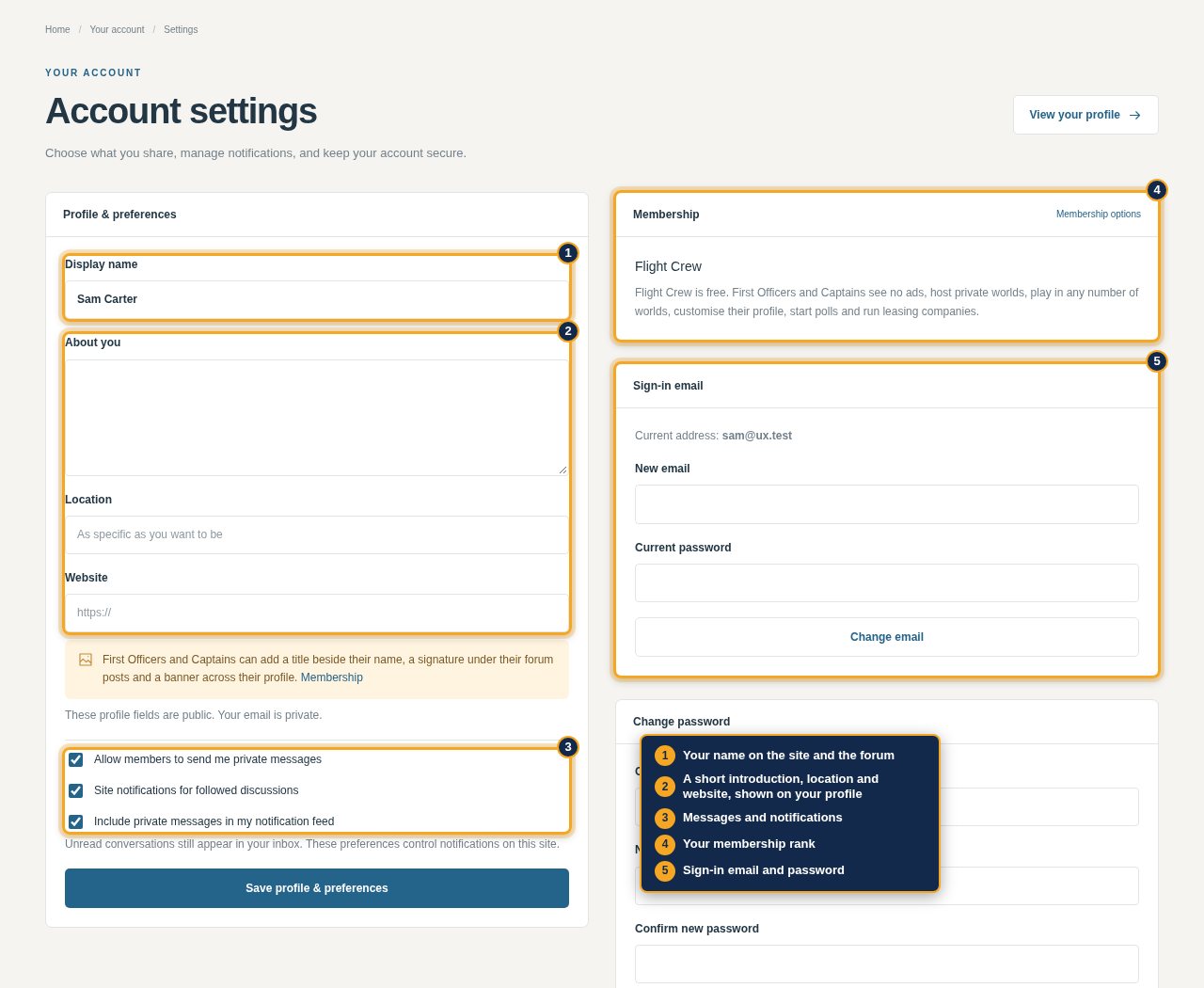
Your account is your identity across worlds, the forum, the gallery and airline dispatches. In account settings, choose your display name, add an introduction, location and website, and decide who may message you and what notifies you. Your membership rank, sign-in email, password and blocked members are there too.
Choose the right board
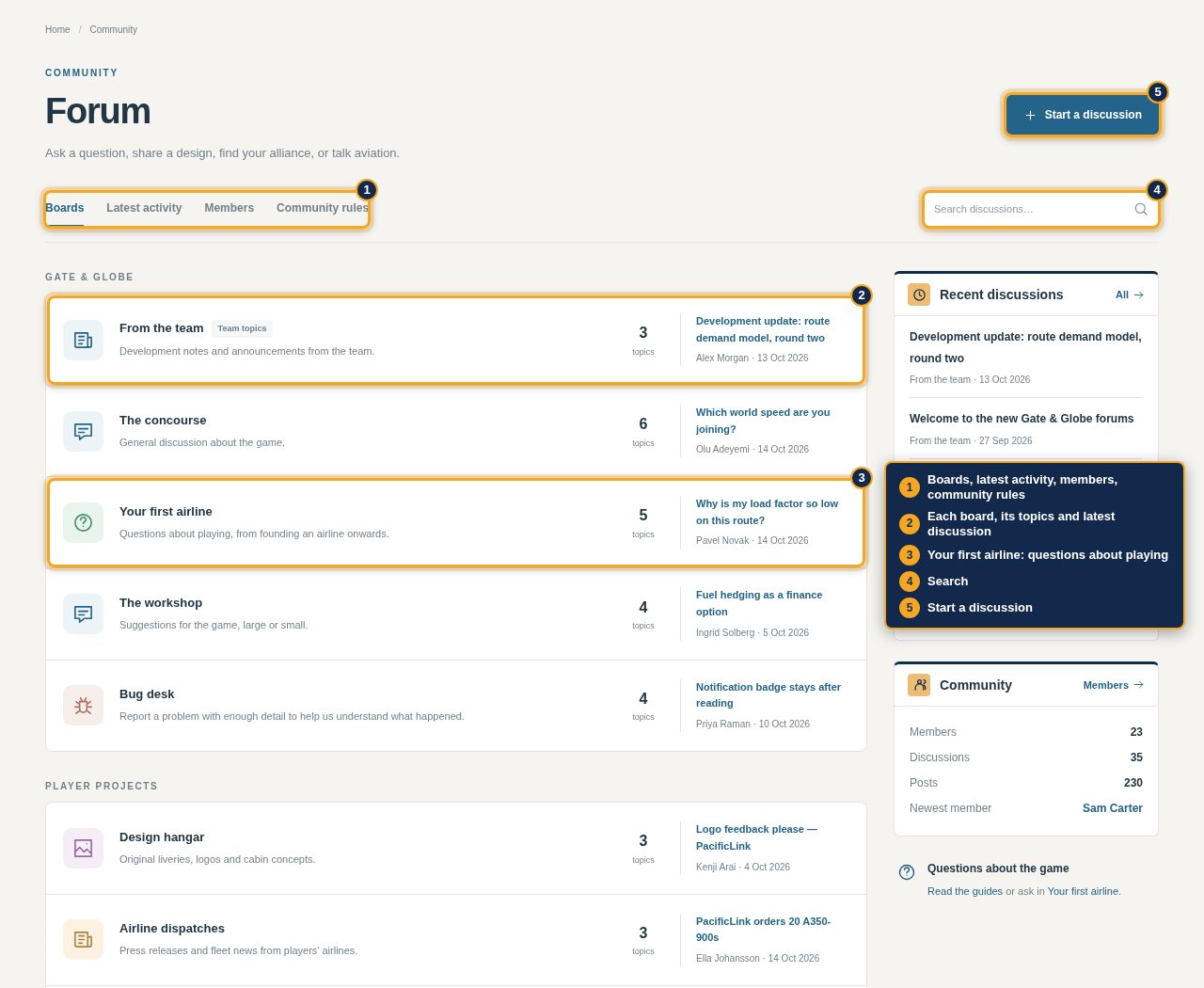
There are four boards. From the team has announcements and development notes. General is for talk about the game, suggestions, real aviation and anything else. Help & bugs takes questions, which you can mark answered, and bug reports, which the team marks as it works on them; Bug desk lists every report. Airlines & alliances takes press releases, which also appear in Dispatches, designs such as liveries, logos and cabin concepts, which need an image and also appear in the Gallery, and alliance recruiting. When you start a discussion on a board that takes more than one kind, choose the kind with the board. You can browse and search without an account.
Write with Markdown
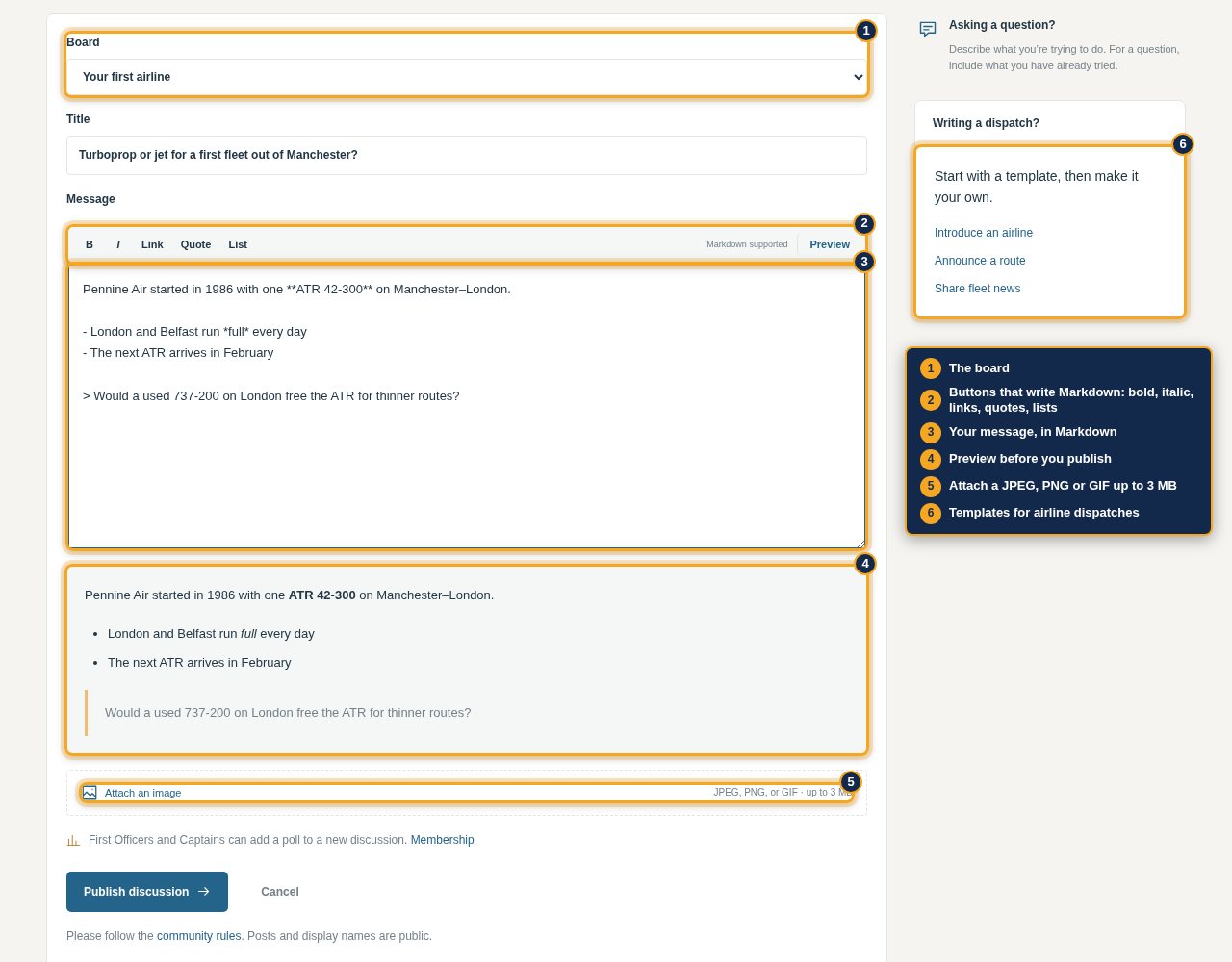
Use bold, italic, lists, quotes and links; the editor's buttons write the Markdown, and Preview shows the result. Raw HTML is not accepted. Attach a JPEG, PNG or GIF up to 3 MB. For dispatches, start from a template. Members can add a poll to a new discussion.
An unfinished message is kept in the browser tab while you write. You can edit your own posts and see their edit history.
Keep up without checking every board
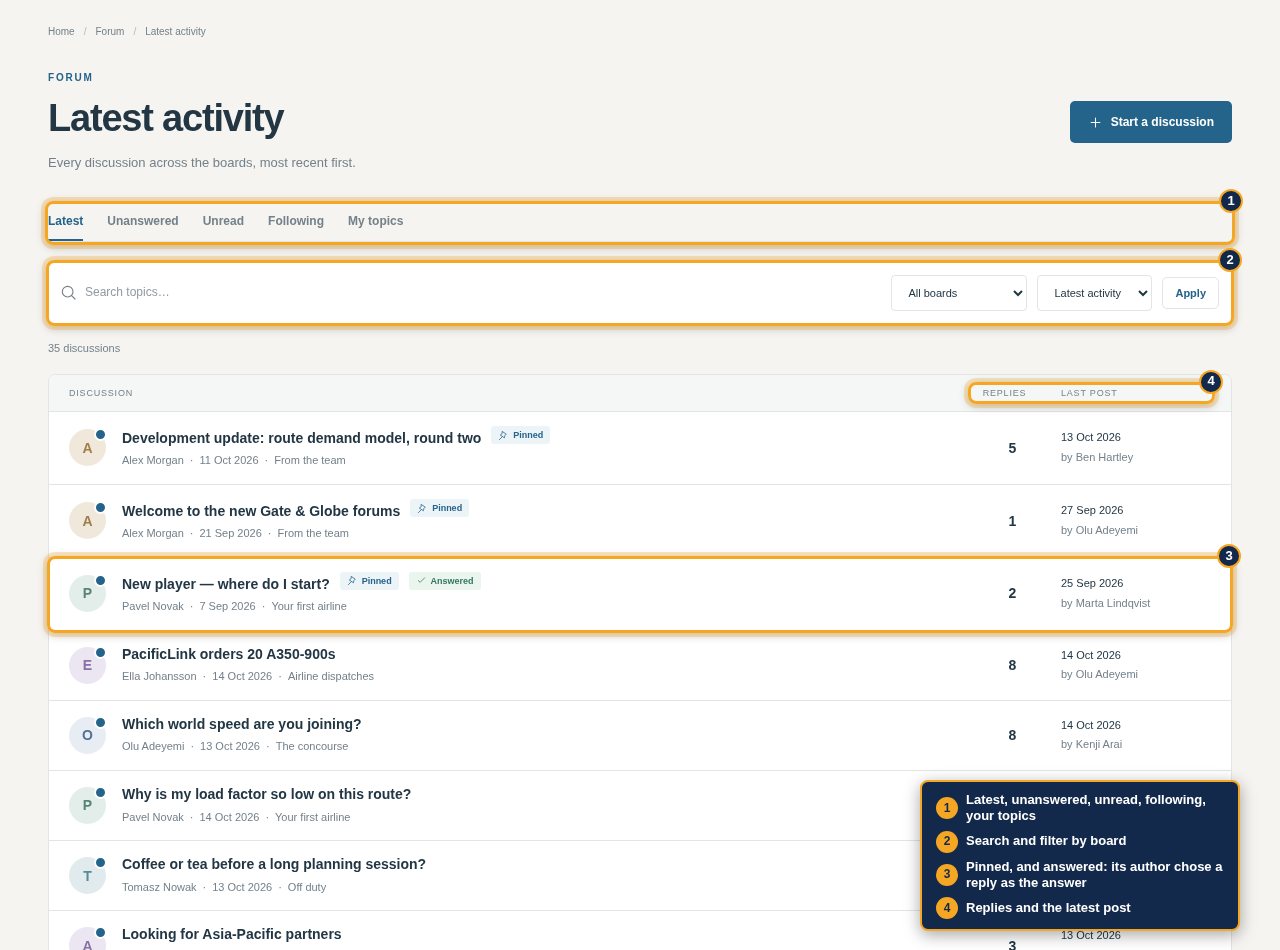
Latest activity shows every discussion, newest first, or only the unanswered, unread, followed or your own, searched and filtered by board. Follow a discussion for reply notifications. In Help & bugs, a question's author can choose a reply as the answer.
Chat
Chat is live: General for everyone, and a channel for each world you can see. It is on the chat page, on the home page, and in the game behind the Chat button in the top bar, which counts the messages you have not read. Chat shows who is online, and the world whose game each of them has open; tick Appear offline under the list to leave yourself out of it. Write @ and someone's name to catch their attention; the message is highlighted for them, and in the game they are told if chat is closed. Hover over or tap a message for its menu: react with 👍, ❤️ or 😂 or pick another emoji, delete your own, or report someone else's to the team. Click a reaction to add yours or take it away; hover over it to see who reacted. Beside the box to write in, the smiley opens emoji to write with and GIF opens GIF search through KLIPY, trending until you search; a click sends the GIF. Messages from members you block are left out.
Profiles and messages
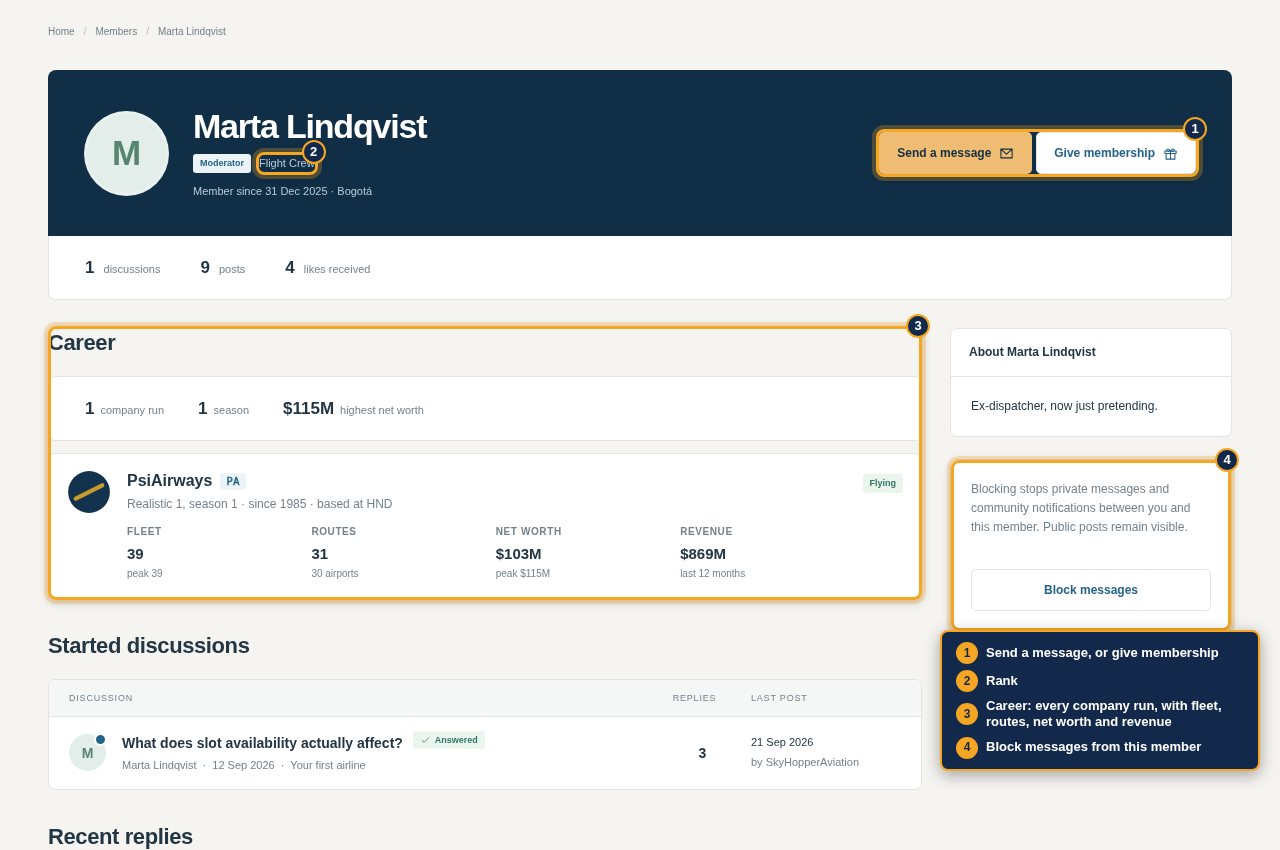
A member's profile shows their rank, their posts, and their career: every company they have run in every world. Send them a message or give them membership from there. Only the people in a conversation can read it. You can block messages from a member, or turn off messages altogether in settings.
When something needs attention
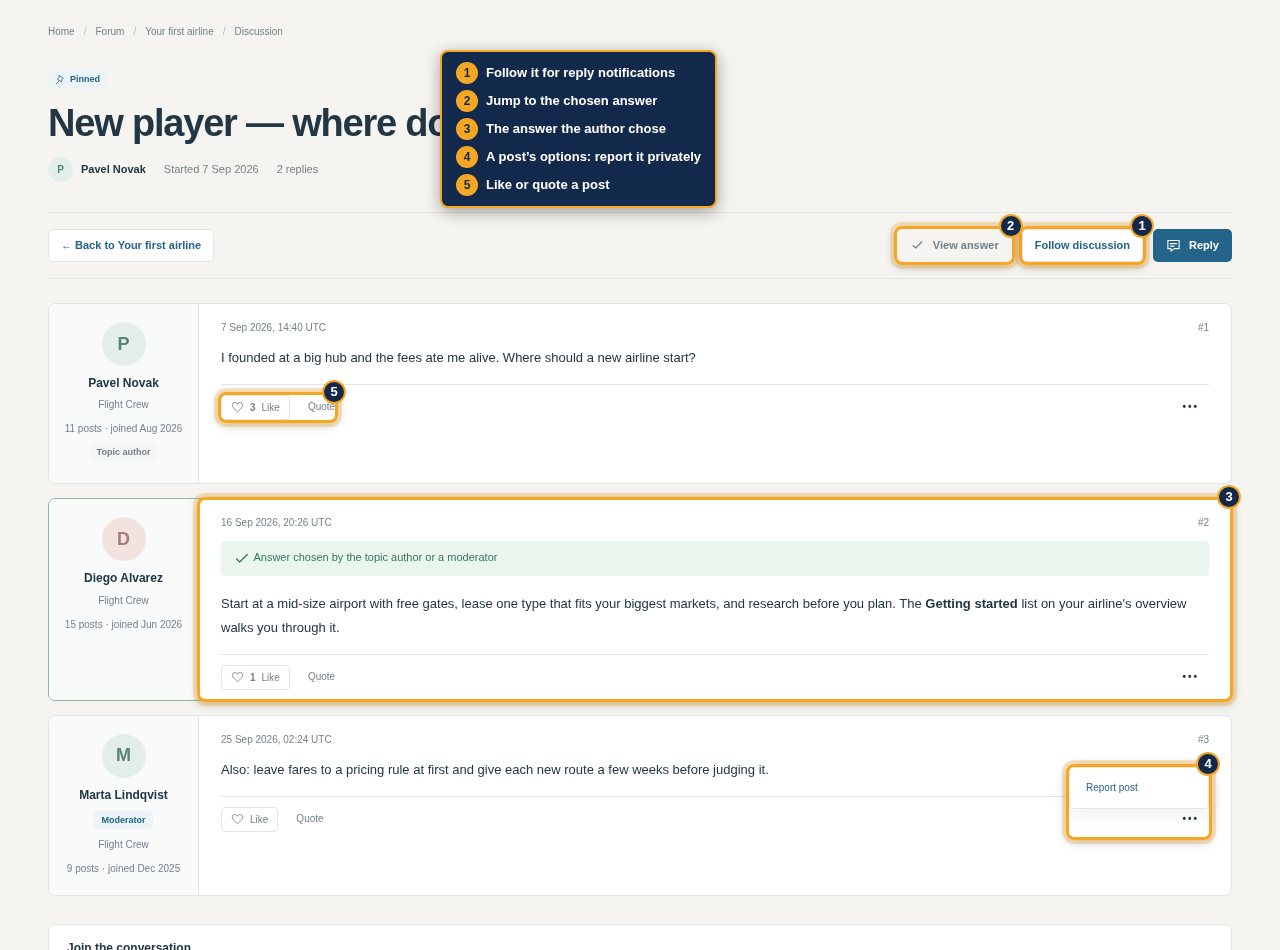
A post's options menu reports it privately, as a chat message's menu does. For account problems or anything that should not be public, use Contact the team. Moderators can hide posts, move topics, close discussions, delete chat messages and mute members in chat for a while; removed posts and messages are hidden rather than erased, and moderation is recorded.